WhatsApp Restore Chat Not Working? How to Get Your Chats Back
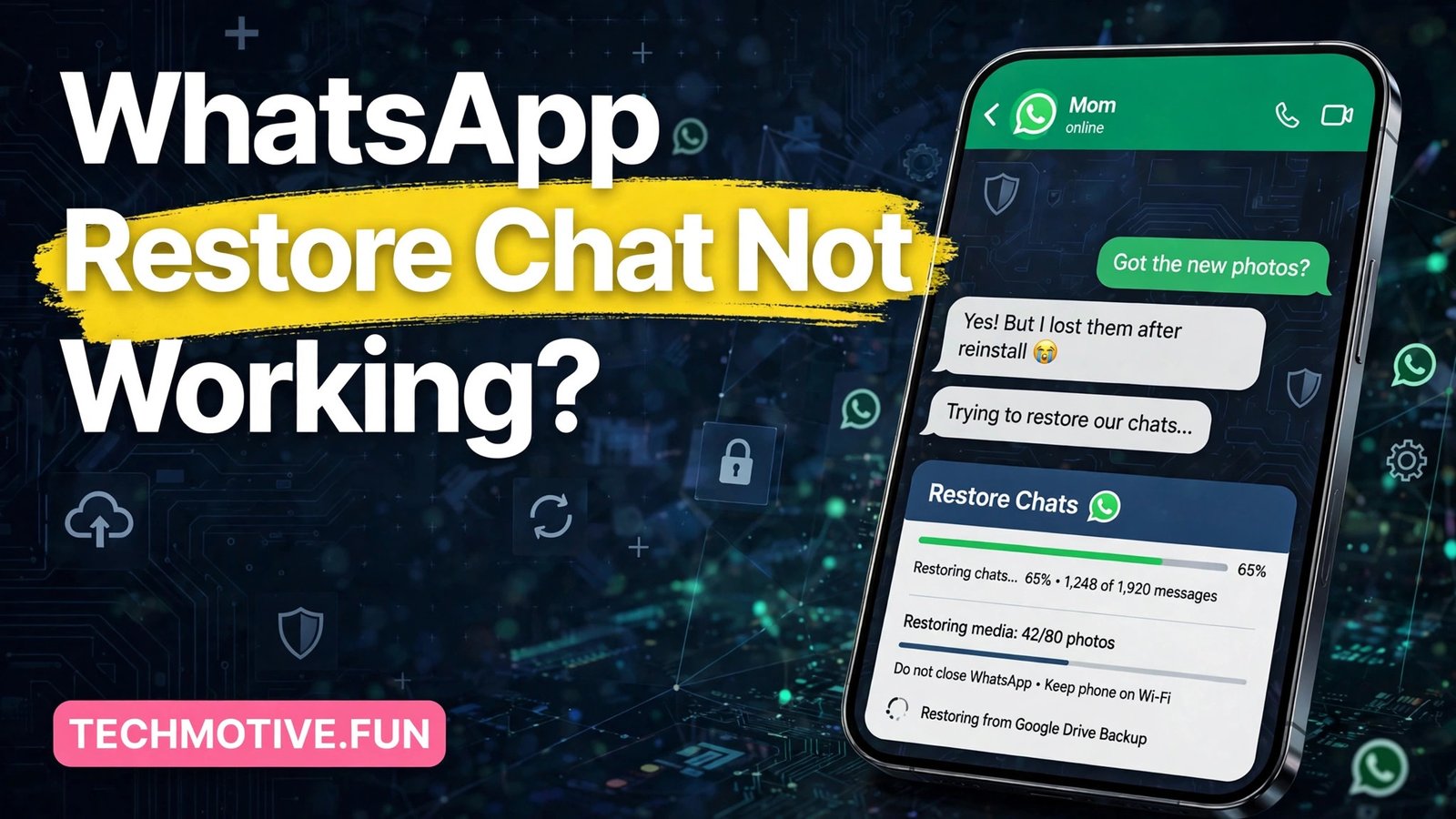
Restoring WhatsApp chats should be a quiet, automatic step. You reinstall the app, verify your number, and your chats reappear. When that does not happen, the worry is immediate, because chats often hold family photos, work conversations, and messages you cannot recreate. The most important thing to know is that a failed restore is often fixable, but the wrong next step can make it worse.
Do not start chatting in the fresh install and then try to restore later, because new messages can overwrite the restore prompt and complicate recovery. Stop, read the checks below, and work through them in order before you use the new install for anything important.
First, Understand How WhatsApp Restore Works
On Android, WhatsApp backs up chats to Google Drive, and it can also keep a local backup on the phone itself. When you reinstall and verify the same phone number, WhatsApp looks for a backup linked to that number and to the Google account signed in on the phone. If it finds one, it offers to restore it. If it does not find one, it simply starts with an empty chat list, and many people only realise the restore failed when their chats are already missing.
That design explains most restore failures. The backup has to exist, it has to belong to the same number and the same Google account, and the phone has to be able to download it. If any one of those conditions fails, the restore will not happen, even though WhatsApp itself is working perfectly.
Before you do anything else, check one fact: was a backup actually being made on the old phone? If backups were switched off, or if the phone was lost before a backup ran, there may be nothing to restore, and no fix can create a backup that never existed. That is a painful answer, but knowing it early stops you from spending hours on steps that cannot help.
Check the Number and the Google Account
The most common restore failure is also the simplest: the wrong account. WhatsApp restore is tied to the phone number you verify and the Google account signed in on the device. If either one differs from the account used when the backup was made, WhatsApp will not find the backup, and it will not tell you in detail why.
Verify that you entered the same phone number, including the correct country code, that you used before. A number that looks right but belongs to a different SIM, or a number entered with a typo, will verify as a different account and will not see the old backup.
Next, check the Google account. Open Settings on the phone, then Accounts or Google, and confirm that the account used for the old backup is signed in and active. If you have more than one Google account on the phone, the backup may belong to the other one. Switch to the correct account, or add it if it is missing, then reinstall WhatsApp and try the restore again.
This account mismatch is also the first thing to rule out when a backup will not complete in the first place, because a backup that never finished uploading cannot be restored later, no matter how correct the account is now.
Check Your Connection and Storage
A restore downloads your entire chat history, and for many people that includes a large amount of media. A weak connection or a full phone can stop it part-way through, and the result looks like a restore that failed for no reason.
Connect to a stable Wi-Fi network before you start the restore, and keep the phone on Wi-Fi until it finishes. Mobile data can work, but a large backup over a slow or metered connection is more likely to stall, and some phones restrict large downloads on mobile data. Plug the phone into a charger as well, so it does not go to sleep or run out of battery during the download.
Check free storage too. Go to Settings, then Storage, and make sure you have comfortably more free space than the size of your backup. If the phone is nearly full, the restore may fail or stop part-way, and media may be missing even if messages come back. Free up space by deleting unneeded files or moving photos elsewhere before you retry.
If the restore starts but then gets stuck, leave it alone for a while before you intervene. A large restore can take a long time on a slow connection, and closing the app or restarting the phone mid-restore can corrupt the process and force you to start again.
When WhatsApp Says No Backup Was Found
The message that no backup was found is the most worrying one, but it does not always mean the backup is gone. It means WhatsApp could not find a backup for the number and account it is currently using, and the checks above are the first things to revisit.
One possibility is that the backup was made to a different Google account, or that the backup belongs to a different number. Another is that the backup was deleted, either manually from Google Drive or automatically when an account was cleaned up. A third possibility is that the old phone used local backups only, and those files were lost when the phone was reset or replaced.
If the old phone is still available and still has WhatsApp installed, do not uninstall anything on it yet. Open WhatsApp on the old phone, go to Settings, then Chats, then Chat backup, and check the date of the last backup and the account it used. If a recent backup exists, you can run a fresh backup from the old phone, then restore on the new phone using the same number and account.
If the old phone is gone, check Google Drive directly. Open the Google Drive app with the backup account, and look in the backups section for a WhatsApp backup. If one is listed there, the account is correct, and the problem is more likely to be the number or the restore process itself.
Restore From a Local Backup Instead
If a Google Drive backup is not available, a local backup may still exist, especially if the old phone’s files were transferred to the new phone. WhatsApp keeps local backup files on the phone, and on Android these can sometimes be used when the cloud backup fails.
This route needs care. Local backup files are stored in the WhatsApp folders on the phone, and moving or renaming them incorrectly can destroy the only copy you have. Before you touch any backup file, make a copy of the whole WhatsApp folder somewhere safe, such as on a computer or a separate storage location, so a mistake does not cost you the backup itself.
The general process is to install WhatsApp, verify your number, and let it detect the local backup file when it asks about restoring. If it does not detect one, the file may be in the wrong folder, or it may belong to a different number. Do not rename files at random, and do not delete the existing backup files to make room, because that can remove the very data you are trying to recover.
If you are unsure about local backups, WhatsApp’s own help pages describe the supported restore routes, and following those steps is safer than following a workaround from an unverified source.
What to Do When the Restore Stalls Halfway
A restore that starts and then stalls is different from one that never finds a backup. Messages may appear, media may be missing, or the progress indicator may stop moving. In most cases, the cause is connection, storage, or a very large backup, rather than a broken account.
First, check that the phone is still on Wi-Fi and still charging, and that it has not run out of storage part-way through. Free up space if needed, then leave the restore running. Media restores after messages, so it is normal for photos and videos to arrive later than the text chats, and closing the app early can interrupt that second stage.
If the restore has been stuck for a long time with no progress, force-stop WhatsApp, restart the phone, and reopen WhatsApp. It may resume the restore or offer it again. Do not uninstall and reinstall repeatedly, because each fresh install without a completed restore risks starting from an empty chat list, and repeated attempts can make the situation harder to untangle.
A backup that repeatedly gets stuck during the backup itself often has the same underlying causes as a stalled restore, so the connection and storage checks that fix one will usually help the other.
Media Missing After Messages Come Back
It is common for messages to restore successfully while some photos or videos stay missing. This usually happens because media was not included in the backup, because the restore was interrupted before media finished downloading, or because the media files themselves were deleted from the old phone before the backup ran.
Check your backup settings on the old phone if it is still available. Backups can be set to include or exclude videos, and a backup made without videos will restore messages but not video files. If videos were excluded, and the old phone still holds them, you may be able to transfer them separately, even if WhatsApp itself cannot restore them.
On the new phone, open a chat with missing media and check whether the media downloads when you tap it. If the media was backed up, it should download on demand once the restore is complete. If it does not, the file may not have been in the backup at all, and the original file on the old phone or in another backup is the only remaining source.
Photos that were never downloaded in the first place cannot be restored from a backup either, because a file that was never on the phone was never backed up, so checking the old phone first is always worthwhile.
Protect Your Chats From the Next Failure
Once you have your chats back, or once you accept that a backup cannot be recovered, set up backups properly so the next phone change is painless. Open WhatsApp, go to Settings, then Chats, then Chat backup, and confirm that automatic backups are switched on, that the correct Google account is selected, and that the backup frequency suits you.
Include videos only if you have the storage and connection to support it, because a backup that is too large to complete is worse than a smaller backup that finishes reliably. Run a manual backup now, and check that the date updates, so you know the next restore will have something to work with.
Finally, keep the old phone untouched until the new phone’s restore is fully complete, including media. The old phone is your safety net, and wiping it or selling it before the restore finishes removes the one copy of your chats that you know is good.
Frequently Asked Questions
Why does WhatsApp say no backup found when I know I had one?
The usual reasons are a different phone number, a different Google account, or a backup that was never completed. Check the number and the account first, then check Google Drive for a listed WhatsApp backup, and check the old phone’s backup date if it is still available.
Can I restore chats after I already started using the new install?
It becomes much harder, because new messages and a new local state can interfere with the restore. If you have already started chatting, back up what you have, then try reinstalling and restoring, but be aware that messages sent since the reinstall may be lost in the process.
How long should a WhatsApp restore take?
It depends on the size of the backup and the speed of the connection. A small backup may finish in minutes, while a large backup with years of media can take a long time on a slow connection. Media restores after messages, so a finished message list does not mean the restore is fully done.
Do I need the same phone number to restore my chats?
Yes. A WhatsApp backup is tied to the phone number it was made with, so verifying a different number will not find the old backup. Use the same number, including the correct country code, that the backup was made with.
Will a local backup work if Google Drive restore fails?
Sometimes, yes, if a local backup file still exists on the phone or was transferred with the phone’s files. Handle local backup files carefully, keep a copy before you move anything, and follow WhatsApp’s own restore guidance rather than an unverified workaround.
Conclusion
A WhatsApp restore that will not work is stressful, but it is usually a problem of identity, connection, or storage, not a sign that your chats are gone forever. Check the number and the Google account first, then the connection and free space, and only then consider local backups or a retry. Keep the old phone safe until the restore is complete, and set up automatic backups afterwards, so the next move to a new phone is a routine step instead of a rescue mission.
Sources
- WhatsApp Help Center: https://faq.whatsapp.com
- WhatsApp Help: https://www.whatsapp.com/help