Google Docs Images Not Moving? How to Fix It
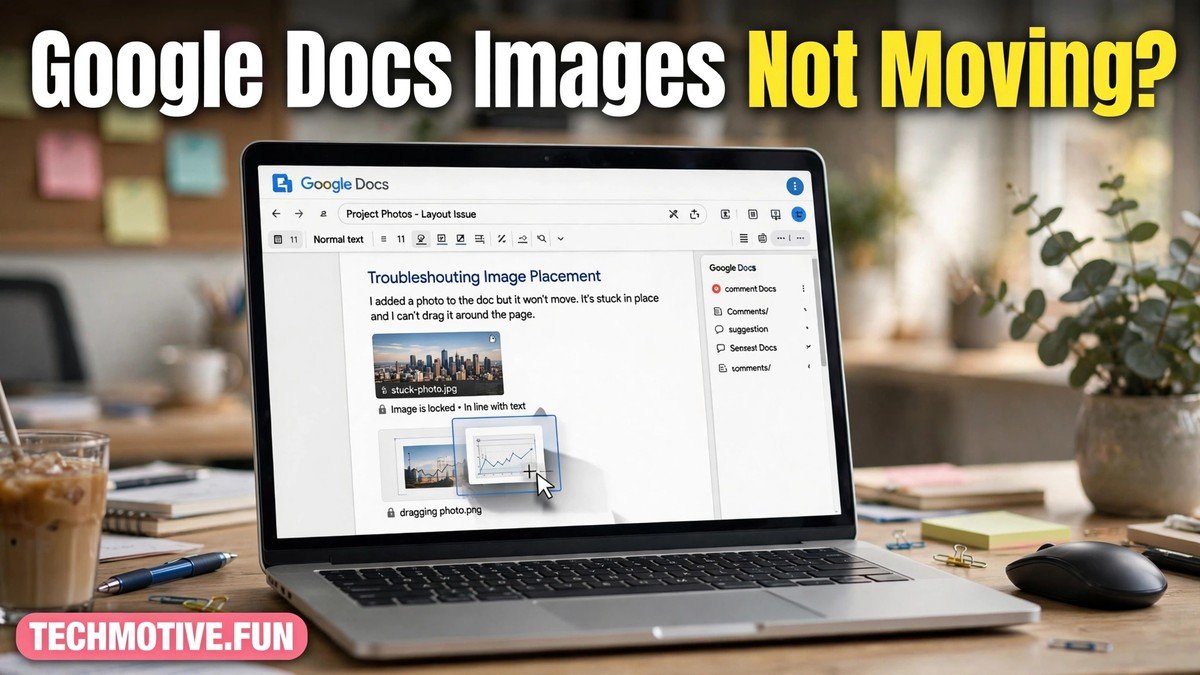
You drop a picture into your document, try to slide it into place, and nothing happens. It stays exactly where it landed, or it jumps to a spot you did not choose. It is a frustrating moment, especially when you are trying to finish a report, an assignment, or a simple flyer.
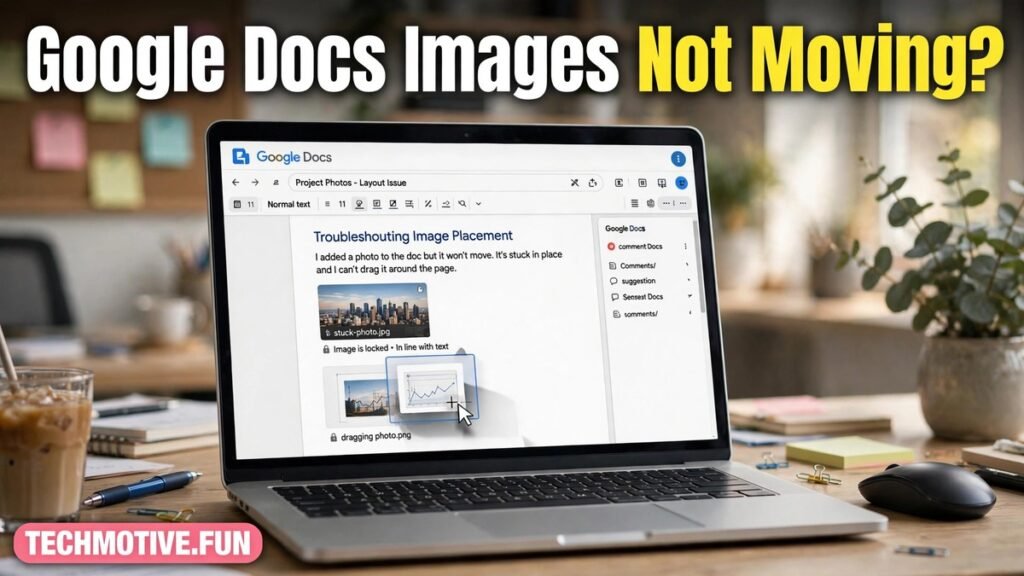
The good news is that in most cases nothing is broken. Google Docs treats images in different ways, and the setting that controls how an image behaves is easy to miss. Once you understand it, most “stuck image” problems take less than a minute to fix.
This guide walks through the common causes in plain language: how image layout works, what to try step by step, and the browser and mobile-app issues to check when the desktop fix does not apply.
What “Not Moving” Usually Means
When people say an image will not move, they often mean slightly different things. Sorting out which one matches your document makes the fix much faster.
Sometimes the image cannot be dragged at all. Sometimes it can be dragged, but only up or down in a straight line, as if it were a line of text. Sometimes it moves, but pushes your paragraphs around in a way you did not expect. And sometimes it moves freely, yet keeps snapping back when you let go.
Each of these behaviours points to a different cause. A picture that behaves like a line of text is not faulty. It is simply using a layout mode that ties it to the text around it. A picture that moves but disturbs your layout may be using a wrap mode that needs a small adjustment. A picture that will not move at all may be selected in the wrong way, locked inside another element, or affected by a browser glitch.
Before you change anything else, notice what happens when you click the image once. A selected image usually shows handles or a small toolbar. If you see no sign of selection, the problem may be with how you are clicking, or with the part of the document the image sits in. If you do see selection controls, the layout setting is the first place to look.
The Main Reason: How Your Image Is Wrapped
Google Docs offers a few basic ways to place an image, and they behave very differently.
In the simplest mode, the image sits in line with your text, much like a very large character in a sentence. It moves only when the text around it moves. You can add lines above it, delete lines below it, or press Enter to push it down, but you cannot grab it and drop it in the middle of a paragraph or off to one side. If your image was added in this mode, dragging it sideways will feel impossible, because that is not how this mode is meant to work.
In the other common modes, the image floats over or beside your text instead. Text can wrap around it, or break above and below it, and you can drag the image to a new spot on the page. These modes give you far more control, but they can also make the layout feel jumpy if the image is large or the page is crowded.
That distinction explains most reports of google docs images not moving. The image is simply in the in-line mode, and the user expects the free-dragging behaviour of a floating image. Switching modes usually solves it at once.
Changing the wrap mode does not change the picture itself, only how the document treats it, and you can switch back if the new layout does not suit you.
How to Change the Image Layout
Start by clicking the image once so it is selected. Look for the small toolbar or options panel that appears near the image. Among those options you should find the controls for text wrapping, sometimes shown as small icons rather than words.
If your image is currently in line with the text, choose one of the wrapping options instead. The wrap option lets text flow around the sides of the image. The break option places the image on its own, with text above and below it rather than beside it. Either choice should let you drag the image, so pick the one that fits the look you want.
After switching, try dragging again, slowly, from the centre rather than from an edge handle. Dragging from a corner handle resizes the image instead of moving it, which is another common source of confusion.
If the layout options are greyed out, try clicking once on empty text first, then clicking the image again. A double-click may open an editing view for some image types, so a single click is usually the right first move.
For a large image, shrink it a little before moving it. A picture wider than the page margins can feel unmovable because there is nowhere for it to go.
When the Image Moves, but Not Where You Want It
A second group of problems looks like a stuck image, but is really about positioning. You drag the picture, let go, and it lands a little higher, lower, or further sideways than you intended.
One cause is the margin. An image cannot sit outside the printable area of the page in the same free way in all layouts, so Docs may nudge it back inside the margins. If you are trying to push a picture right up to the edge of the page, that nudge is normal behaviour, not an error.
Another cause is crowded space. When text wraps around a picture, Docs tries to keep the words and the picture from overlapping in an unreadable way, so a picture dropped into a crowded paragraph may settle in the nearest clear spot. Moving a paragraph break or making the image slightly smaller can give it the space it needs.
It is also worth checking whether the image is very close to a page break. A picture near the bottom of a page may jump to the next page if it does not fit in the remaining space. In that case, shrink the image or move some text so the picture has room on the page you want.
When You Cannot Select or Drag the Image at All
If clicking the image does nothing at all, the cause is often not the wrap mode. A few other situations are worth ruling out.
First, the image may be inside a table cell, a header, a footer, or a drawing area. Images in those places follow the rules of their container, so they cannot always be dragged freely across the main body. An image in a header, for example, repeats on every page and is edited through the header area. If your picture is in one of these areas, click into that area first.
Second, you may be viewing the document in a mode that does not allow editing. If someone shared the file with view-only access, or if you opened a preview rather than the editable document, you will not be able to move anything. Check that you have edit access and are working in the document itself, not a preview or downloaded copy.
Third, the browser itself may be the problem. A frozen tab, a slow connection, or an interfering extension can make clicks feel unresponsive. If the whole document feels sluggish, close other heavy tabs, reload the page, and try again.
Finally, check how you are dragging. A drag that starts on a resize handle or on the edge of the image may not register as a move. Click the centre of the image, hold briefly, and then drag in one smooth motion.
Browser and Cache Problems Worth Trying
If the layout is correct and the image still will not move, the next suspects are browser-side. These steps do not change your document, so they are safe to try.
Start with a reload. If that does not help, try opening the same document in a private or incognito window. If the image moves there, an extension or stored setting in your normal window is likely interfering, and you can narrow it down by disabling extensions one at a time.
Clearing cached files and cookies can also help when a page has not loaded cleanly, although clearing cookies may sign you out of sites. As a gentler first step, try a different supported browser. If the image moves there, the document is fine and the first browser needs attention.
Keep your browser reasonably up to date as well. Very old versions sometimes struggle with newer editing features. If the same problem affects every document on a work or school account, while a personal account works fine, it is worth asking the account administrator.
Moving Images on the Mobile App
The Google Docs app on a phone or tablet is useful for reading and light editing, but it does not offer the same fine control as a computer. This is an important difference, and it explains many mobile reports of images that will not move.
On a small screen, selecting a small image precisely is harder, and drag gestures can easily be read as scrolling. If you tap an image and it does not move, tap it once to select it, then look for the layout or image options in the app’s menus, rather than relying on a drag alone.
Some layout options may be limited or arranged differently in the app. If you cannot find the wrap control on your phone, switch to a computer for that one change if you can. Once the wrap mode is set to a floating option there, the image will usually keep that behaviour on your phone.
Also remember that a slow mobile connection can delay edits, so wait a few seconds before dragging again. For a document where placement really matters, such as a poster, a computer remains the better tool.
A Calm Checklist to Work Through
When you are stuck, work through these checks in order instead of trying everything at once. Each step rules out one cause.
First, click the image once and confirm it is actually selected. Second, check the wrap mode and switch it from in-line to a wrapping option if needed. Third, drag from the centre of the image, not from a corner handle, and try a slightly smaller size if the image is very large. Fourth, check whether the image sits in a table, header, footer, or drawing area, and whether you have edit access to the document.
If none of that helps, reload the document, try a private window, and try another browser. Then test the document on a computer if you have been working on a phone. In most cases one of these steps will reveal the cause, and the rest of the list becomes unnecessary.
One final habit will save you time: when you insert an image you will need to position precisely, set its wrap mode right after inserting it, before you write the text around it.
Related Guides
If you work with Google Docs often, a few other common glitches have the same kind of simple explanation behind them. You can read about a page break that refuses to behave in our guide to Google Docs page break problems, sort out connection trouble in our guide to Google Docs offline mode, and fix dictation trouble in our guide to Google Docs voice typing. The guides are linked here: Google Docs page break not working, Google Docs offline mode not working, and Google Docs voice typing not working.
Frequently Asked Questions
Why is my Google Docs image not moving when I drag it?
In most cases the image is set to sit in line with your text, which means it moves only when the surrounding text moves. Change its wrap setting to a wrapping option, then drag it from its centre. If it still will not move, check that you have edit access and that the image is not inside a table, header, or footer.
How do I make an image move freely in Google Docs?
Select the image, open its text wrapping options, and choose a wrapping mode rather than the in-line mode. Once the image floats beside or between your text, you should be able to drag it to a new position. Making the image slightly smaller first can help if it is wider than the page margins.
Why does my image jump back after I move it?
The document may be nudging the image back inside the margins, away from overlapping text, or onto the next page because it does not fit in the remaining space. Try a smaller image size, move a paragraph break, or free up space on the page, then drag the image again.
Can I move images in the Google Docs mobile app?
You can make basic edits in the app, but precise dragging and some layout controls are harder on a small screen, and a drag gesture may be read as scrolling. For careful placement, set the wrap mode on a computer if possible, then check the result on your phone.
What should I do if no image in any document will move?
If every image in every document is affected, the problem is more likely with your browser, your device, or your account access than with one file. Reload the document, try a private window and a different browser, and confirm you have edit access. If a personal account works while a work or school account does not, check with your account administrator.
Will changing the wrap mode damage my document?
No. Changing the wrap mode only changes how the document places the image. It does not alter the picture itself, and you can switch back to the previous mode if you prefer the original layout. It is safe to try the different options and undo a change you do not like.
Conclusion
A Google Docs image that will not move is rarely a sign of a serious fault. More often, it is a picture sitting in line with the text when you expected it to float, a picture trapped inside another part of the document, or a browser hiccup getting in the way of a simple drag.
Start with the wrap setting, drag from the centre of the image, and work through the checklist above before assuming anything is broken. That order will solve the problem for most documents, and it will leave your layout in better shape than a series of random drags ever would.